Reaching a full list of leads, candidates, or customers by phone takes time, and most teams do not have enough hands to dial through hundreds of contacts in a day. This is the exact challenge that the Send Calls solution from Pete & Gabi, Olivia AI was created to solve. Olivia AI is capable of calling many contacts in one session, following a pre-defined conversation flow during calls, and automatically saving the results of each call.
Regardless of whether you are conducting outbound recruitment calls, placing sales follow-up calls or making outreach calls in general, Olivia AI enables you to set up and initiate an entire batch of calls within minutes. This tutorial describes the process of completing calls with Olivia AI using the Send Calls section in the dashboard.
Getting Started: Accessing the Send Calls Page
Before you begin making calls, make sure to sign in to your Pete & Gabi account and locate the Send Calls option on the left sidebar. Once you click on this option, the Send Calls page will appear, where you will find a message with your name welcoming you to this function. This page also contains everything you need to complete the task from the contact list to the phone number, the pathway, and the voicemail settings.
Step-by-Step: Sending Calls with Olivia AI
Step 1: Upload Your Contact List
To upload your contacts, simply click on the Upload File option. A popup window will show up where you can pick a folder containing your call list Excel file. The Excel file needs to have a list of telephone numbers and other details required for the call. The Olivia AI system will need to call each person and have personalized conversations accordingly.
Once the file is selected, its name appears next to Upload Excel file field, along with an X icon in case you want to remove it and upload a different file.
Step 2: Select the Phone Number to Call From
Click the Phone Number dropdown to see the full list of numbers available in your account. Each number is labeled with a name, so you can quickly tell them apart, for example a recruiting line, a demo line, or a number tied to a specific person or campaign. Select the number you want to use as the outbound caller ID for this batch of calls.
Step 3: Choose a Pathway
Then, proceed to select the Pathway dropdown. Pathway is defined as the process of a phone call conversation followed by the Olivia AI system. You will find a list of pathways created with the help of the Pathway Conf feature as part of different types of calls such as interview screening calls, business development calls, or general offering calls. Select the pathway that matches what you want Olivia AI to say and ask on this batch of calls.
Step 4: Confirm the Voice, Metadata, and Call Settings
Once the phone number and the pathway are selected, check through the rest of the form before the calls are queued:
- Voice: By default, you should get Olivia (gender female) in most cases, but there are cases to choose another vocal personality if the pathway has different requirements.
- Metadata (Variables): In some ways, the identified pathways will utilize the personalization fields, including an Agent Name. After selecting a pathway using this property, such property will be revealed automatically, allowing entering details.
- Max Duration: Pathways can work differently with respect to the maximum length of calling durations available. Thus, you may expect longer pathways to allow longer duration than short screening calls.
- Voicemail Action and Voicemail Message: Establish the appropriate actions that Olivia AI should take in case a call reaches voicemail. E.g., hang up and confirm or edit the message that plays, if a message is left.
Step 5: Review the Note and Send the Calls
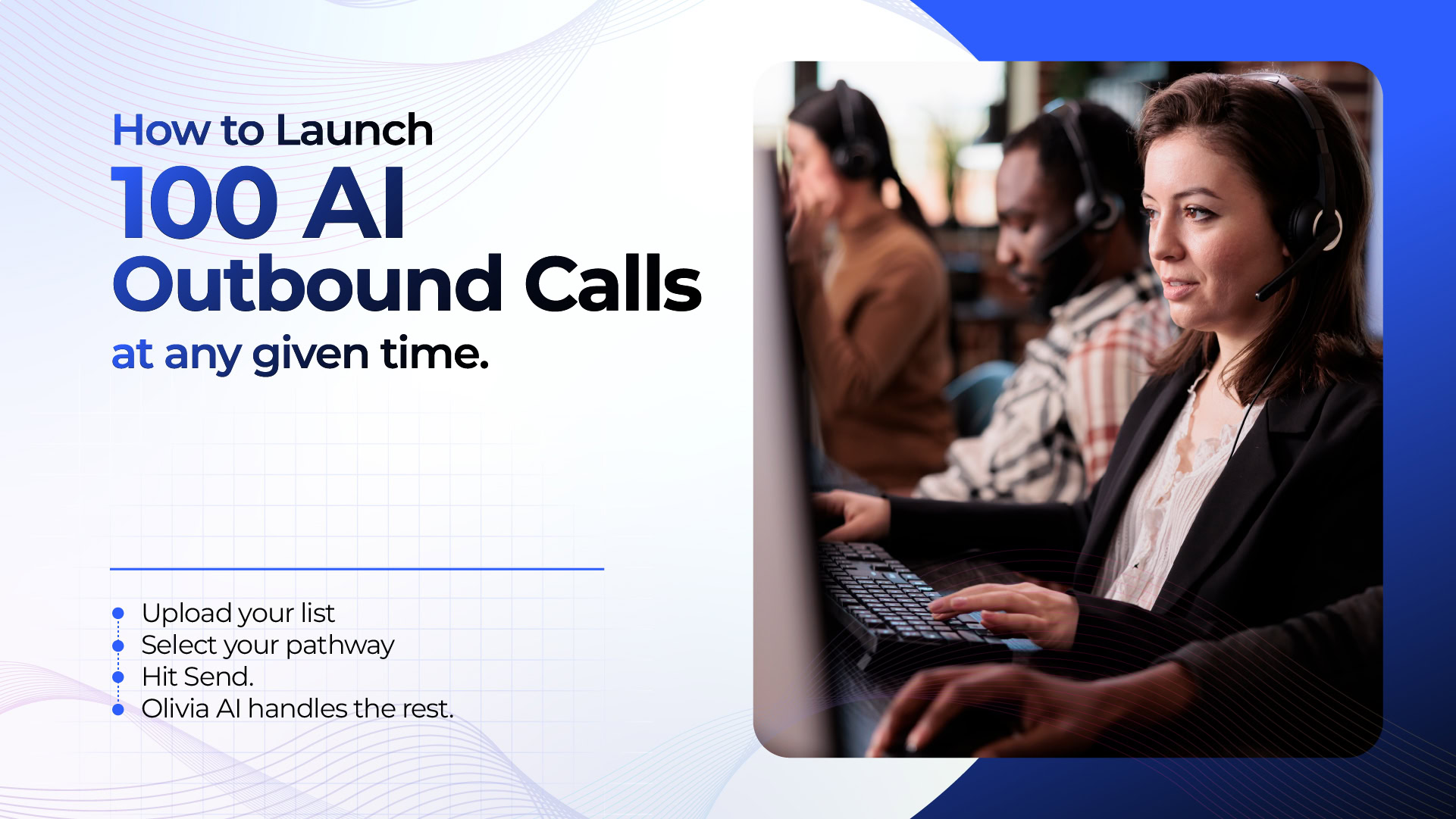
Just above the Send Calls option is a note reminding you to stick to a limit of 100 calls at a time to prevent a bad request. With the complete list of contacts, phone numbers, pathway, plus the settings, click Send Calls to initiate completion of the batch.
Step 6: Wait While Olivia AI Sends the Calls
Once clicked, the Send Calls button changes to a Sending state while Olivia AI processes the request and starts placing the calls in your uploaded list.
Step 7: Confirm the Calls Were Sent
A Success popup appears once the batch has gone through, confirming that the call was sent successfully. Click OK to close this popup.
Step 8: Ready for the Next Batch
Once the OK button is clicked, the form clears all fields including the uploaded file, phone number, and pathway fields. Thus, this makes it easier for the user to perform the same procedure for different contacts smoothly.
Why Businesses Use Olivia AI for Outbound Calling
Sending calls with Olivia AI is simple. All you need to do is upload the list of contacts, select phone number and pathway, verify the settings, and click on Send Calls. To illustrate, a recruiting team may dial prospects using one pathway while a sales team will make follow-up calls using another pathway and phone number using the same dashboard.
Get Started with Olivia AI
Ready to put an AI calling agent to work on your outbound calls? Log in to your Pete & Gabi account, upload a contact list, and send your first batch of calls with Olivia AI today.