Receiving an invitation to an AI-powered interview can feel unfamiliar, especially when the process includes a device security check, camera and microphone permissions, and screen sharing. The good news is that the Rebecca AI interview experience is designed to guide candidates through each requirement before the interview begins. Once the setup is complete, the interview itself works much like a structured conversation with a recruiter.
This guide explains how to use Rebecca AI from the moment you open your interview link until your responses are successfully submitted. It also covers Rebecca Guard, the required browser permissions, what to expect during the interview, and how to solve common technical problems. Following these steps before and during your session can help you avoid delays and focus on giving clear, confident answers.
What Is a Rebecca AI Interviewer?
Rebecca AI is an AI-powered recruiting experience that allows candidates to complete a structured video interview online. During the session, Rebecca asks interview questions, listens to the candidate’s responses, and records the interview for review by the employer’s authorized hiring team. The candidate joins through a unique interview link and completes the process in a web browser.
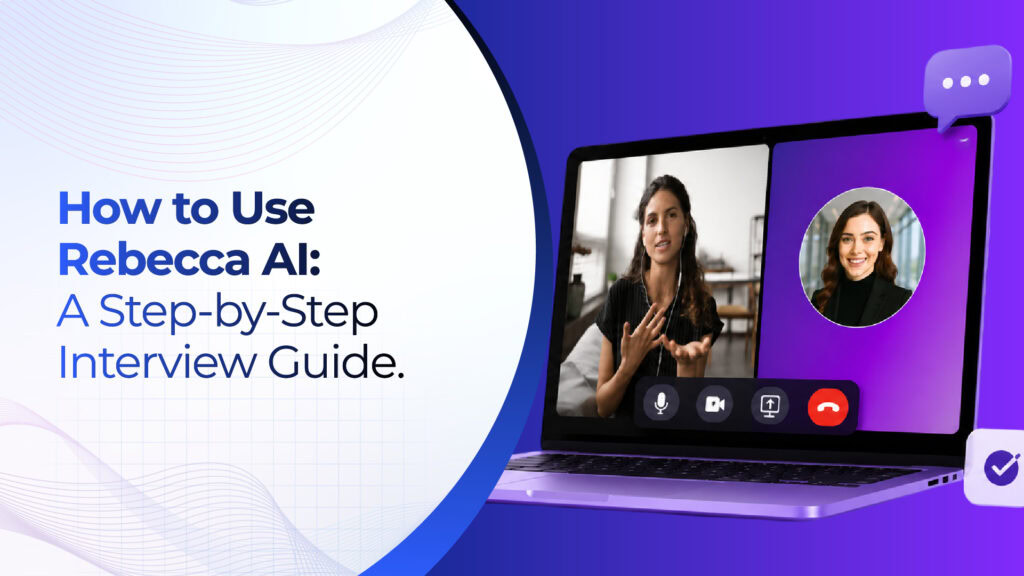
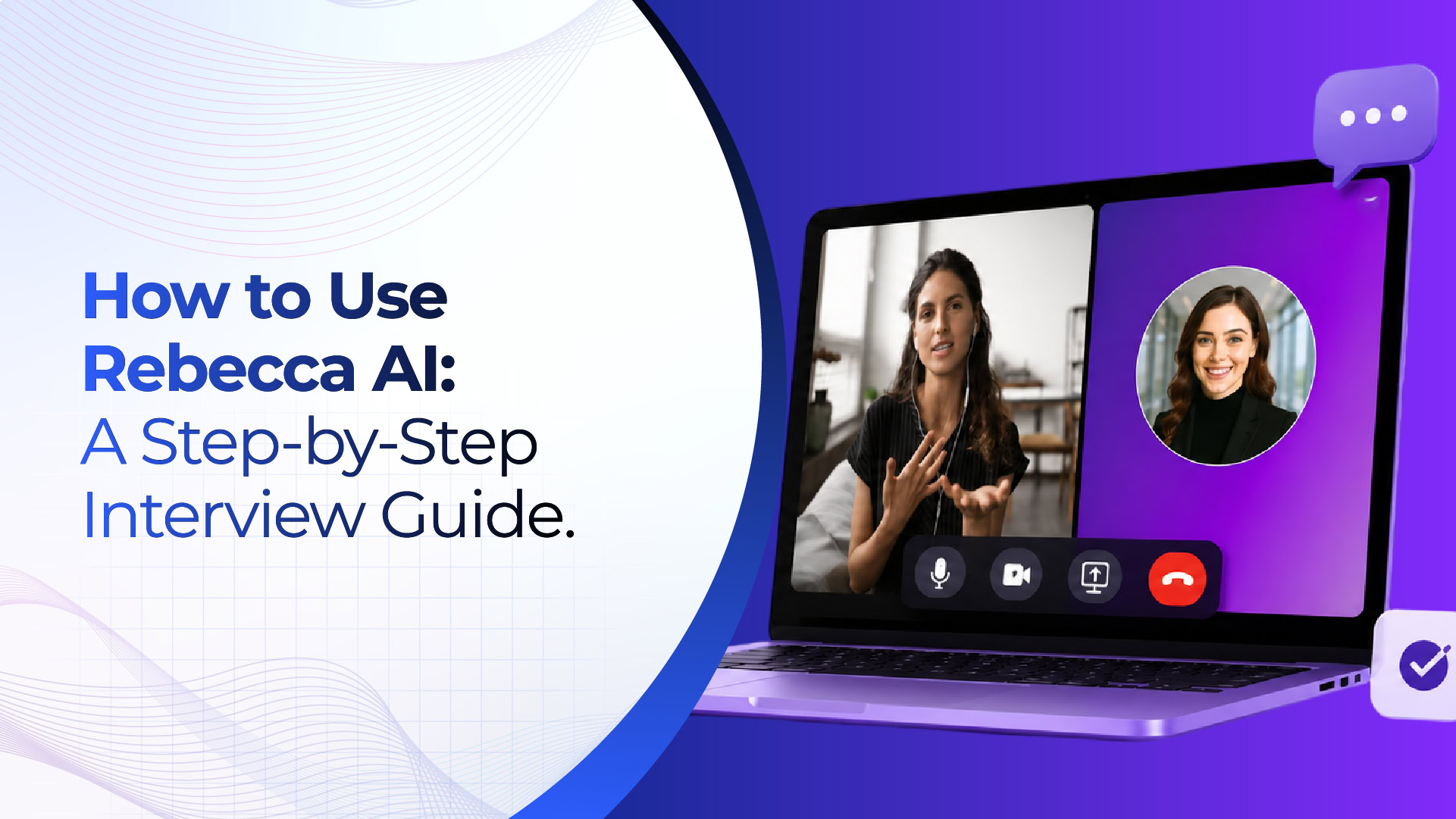
The candidate experience includes three setup stages: Overview & Setup, Device Check, and Permissions & Start. The platform verifies the interview environment, confirms that the required camera and microphone are working, and checks that the necessary permissions are enabled. During the interview, the page displays the candidate’s camera feed alongside the Rebecca AI recruiter interface.
What You Need Before Starting
Preparing your space and equipment in advance makes the process much smoother. Use a laptop or desktop computer with Google Chrome, a functioning camera, a functioning microphone, and a stable internet connection. Choose a quiet, well-lit location where you can speak without interruption. Position the camera near eye level and make sure your face is clearly visible.
Close unrelated programs before opening the interview. Rebecca Guard checks the device for applications that may not be permitted during the session, so closing unnecessary programs can prevent a failed scan. Because the invitation link may be intended for a single use, begin only when you have enough uninterrupted time to finish. Keep the interview page open throughout the session and avoid switching to other tabs.
Disconnect every external monitor before starting the interview. Use only your laptop or computer’s main built-in display. An attached second monitor may prevent the security or display-access check from completing correctly.
If you are using a Mac, confirm that Rebecca AI is using your Mac’s built-in microphone rather than an iPhone microphone connected through Apple’s Continuity features. In Chrome’s microphone menu, select MacBook Air Microphone, MacBook Pro Microphone, or the corresponding built-in Mac microphone shown on your device.
How to Use Rebecca AI: Step-by-Step Instructions
Step 1: Open Your Unique Interview Link
Open the Rebecca AI link sent by the employer or recruiter. The page will take you to the candidate interview experience and display the setup sequence. Read the initial information before continuing. If the link does not load, confirm that you copied the complete URL and open it in the latest version of Chrome.
Treat the interview link as private. Do not forward it to another person, and do not open it repeatedly on different devices. The interface identifies the link as single use and advises candidates to contact support if a restart is required.
Step 2: Download and Open Rebecca Guard (only if prompted)
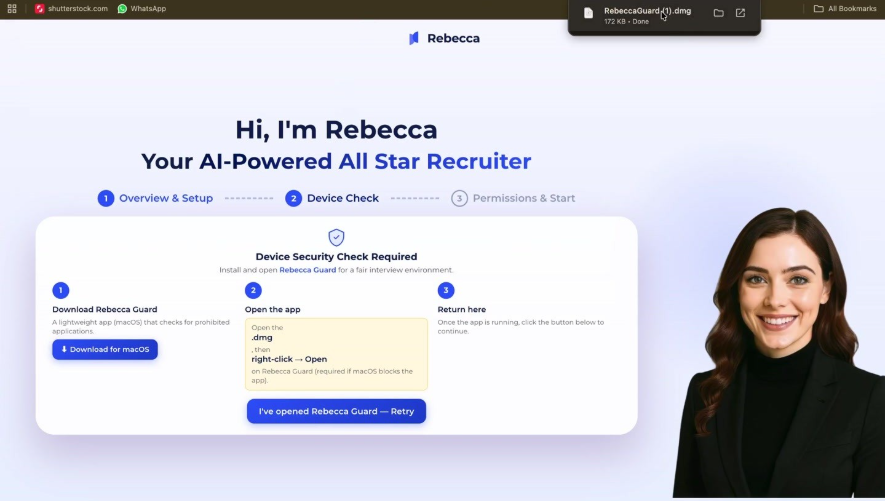
The Device Check screen asks you to install and run Rebecca Guard. This lightweight application checks for prohibited applications and helps create a fair interview environment. Select Download for macOS if you are using a Mac. If a Windows download option is presented on your computer, choose that version instead.
After the file downloads, open it and launch Rebecca Guard. On macOS, the operating system may initially block an application downloaded from the internet. If that happens, locate Rebecca Guard, right-click it, select Open, and confirm that you want to run it. Also check whether your computer’s security software, firewall, antivirus protection, or company-managed security settings are preventing the application from opening. Keep the application open in the background, return to the Rebecca AI browser page, and select “I’ve opened Rebecca Guard — Retry.”
Step 3: Pass the Device Security Check
Rebecca Guard will scan the interview environment for blocked applications. When the scan is successful, the page displays “Device Check Passed” and “All clear — no blocked apps found.” You can then review the Rebecca Guard Candidate Disclosure, Consent & Privacy Notice by selecting Read Disclosure.
Read the disclosure carefully, select the checkbox confirming your agreement, and choose Continue to Interview. If the security check does not pass, close any applications identified by the system, confirm that Rebecca Guard is still running, and select Rescan. Do not attempt to bypass the check, because the interview cannot continue until the required conditions are met.
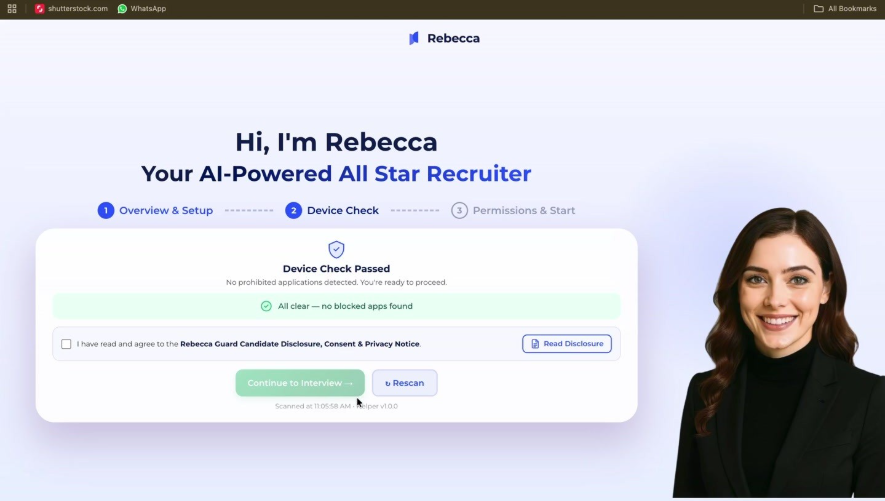
Step 4: Allow Camera and Microphone Access
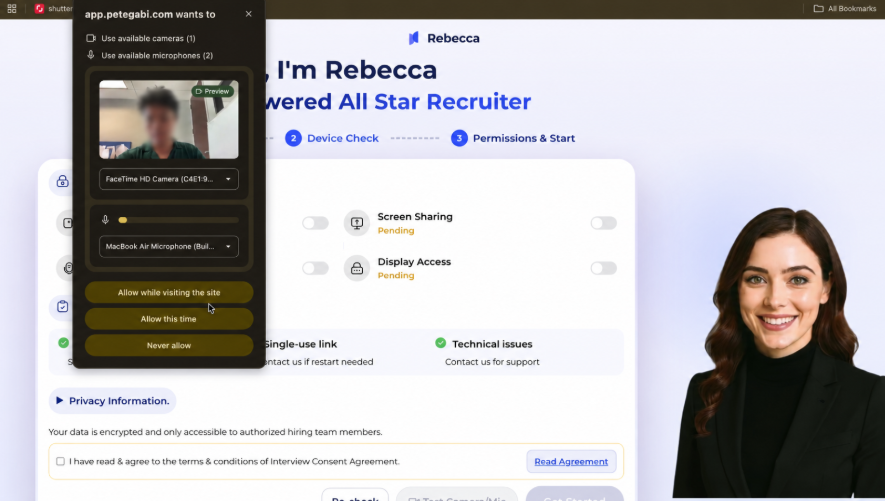
Chrome will request permission to use your camera and microphone. Review the available devices in the permission panel and select the correct camera and microphone. Then choose Allow while visiting the site or Allow this time. The Rebecca AI page should update both Camera Access and Microphone Access to “Allowed.”
If you have multiple microphones or cameras, use the device menus to select the equipment you plan to use. A built-in laptop camera and microphone are usually sufficient. If the preview is dark, adjust your lighting before continuing. If the browser previously blocked either device, open Chrome’s site controls near the address bar, change the permission to Allow, and run the check again.
Step 5: Enable Screen Sharing and Display Access
The interview setup also requires screen sharing and display access. Turn on Screen Sharing. Chrome will open a window asking what you want to share. Select the Entire Screen tab, choose the screen preview, and then select Share. Do not select only a Chrome tab or a single application window.
This distinction is important. If you choose Window instead of Entire Screen, Rebecca AI may display a message asking you to repeat the process. Select Re-check, restart screen sharing, choose Entire Screen, and confirm the screen preview. When the setup is correct, Screen Sharing and Display Access will both show “Allowed.” Keep screen sharing active until the interview ends.
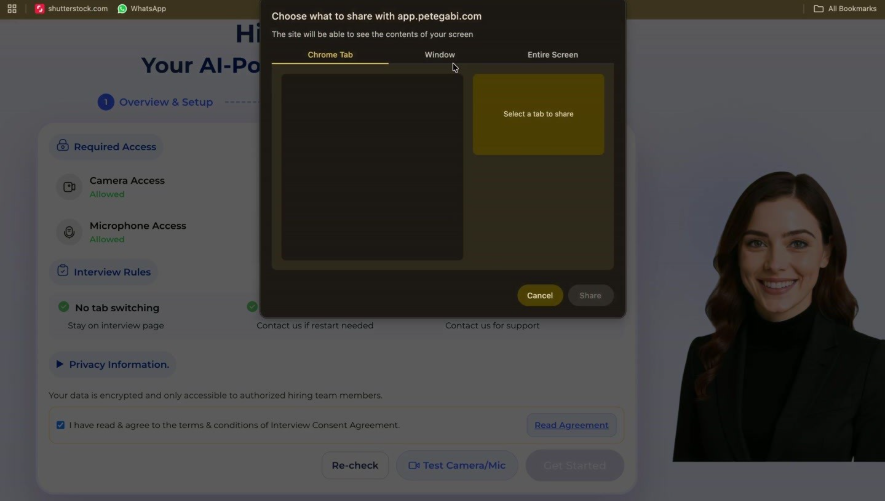
Step 6: Review the Interview Consent Agreement
Before the interview can begin, select Read Agreement and review the Interview Consent Agreement. The agreement explains the interview process and how information may be collected and used. Read it rather than selecting the checkbox automatically. When you are comfortable proceeding, check the box confirming that you have read and agree to the terms and conditions.
At this stage, verify that all four required permissions—camera, microphone, screen sharing, and display access—show “Allowed.” The page also reminds candidates not to switch tabs, notes that the interview link is single use, and provides guidance for technical issues.
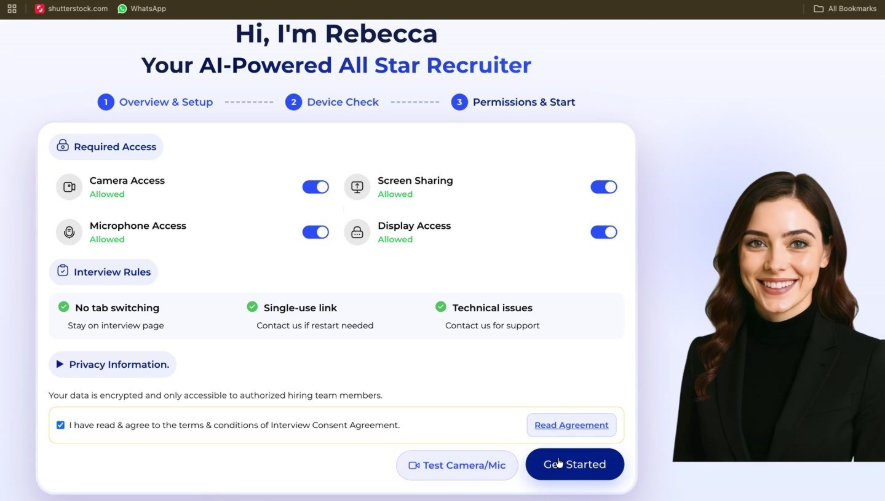
Step 7: Test Your Camera and Microphone
Select Test Camera/Mic to confirm that your video and audio work correctly. Check that your face is centered, your background is appropriate, and your voice is clear. Speak a few words at your normal interview volume. If the microphone level does not respond, return to the browser permissions and choose a different input device.
This is also the best time to silence notifications, place your phone out of reach, and make sure no one will enter the room. Once the interview begins, you should stay on the page and avoid making technical changes unless the system instructs you to do so.
Step 8: Select Get Started and Complete the Interview
When all permissions are allowed and the consent checkbox is selected, the Get Started button becomes available. Select it to enter the interview. The interview screen shows the job title and elapsed time at the top, your camera feed on one side, and Rebecca on the other. Status indicators show that screen sharing, the AI recruiter, cheat detection, and recording are active.
Rebecca will introduce the session and ask questions aloud. Listen until each question is complete before answering. Speak naturally, use complete thoughts, and support your answers with relevant examples. A practical structure is Situation, Task, Action, and Result: briefly explain the context, describe your responsibility, state what you did, and finish with the outcome.
Look toward the camera when possible, but do not worry about maintaining perfect eye contact every second. Focus on clarity and substance. Avoid reading prepared answers from another tab or application, since the interview instructions require you to remain on the interview page. Do not refresh the browser, stop screen sharing, close Rebecca Guard, or select Leave Interview unless you intentionally need to end the session early.
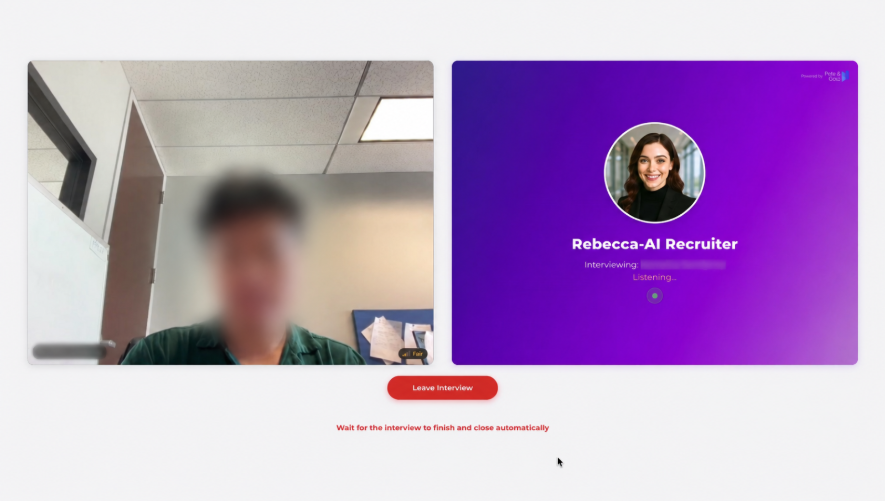
Step 9: Wait for the Interview to Finish and Upload
After the final question, wait for Rebecca to finish and close the interview automatically. The page may display “Finalizing your interview…” while the recording uploads and the results are saved. Keep the browser open and maintain your internet connection during this stage. Closing the page too early could interrupt the submission process.
Your interview is successfully submitted when the “Interview Complete!” screen appears and confirms that your responses have been recorded and will be reviewed. You can then close the window. Rebecca AI may also ask you to rate your experience with a star rating. You can submit a rating or select Skip.
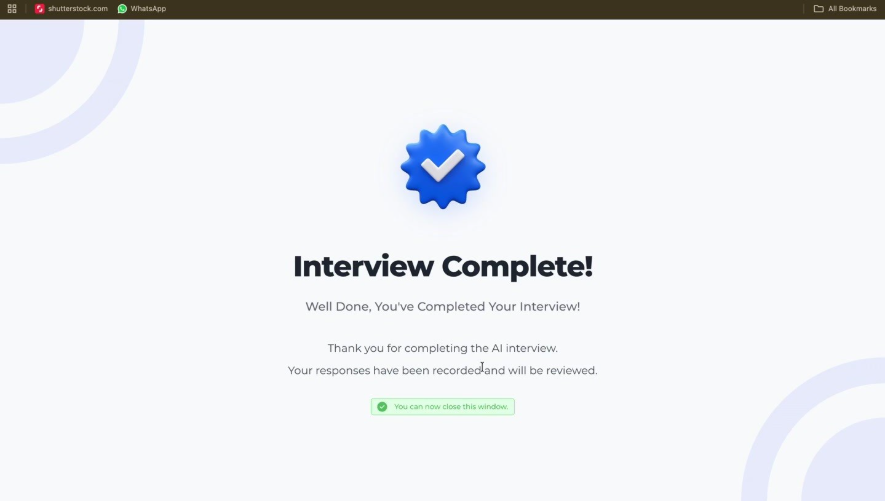
What to Expect During the Rebecca AI Interview
The session is structured, but it should still feel conversational. Because the recruiter is AI-powered, there may be a brief pause while Rebecca listens or moves to the next prompt. Wait for the question to finish, organize your thoughts, and answer at a steady pace. You do not need to rush simply because the interview is automated.
The best responses are specific and relevant to the role. Before the interview, review the job description and identify examples that demonstrate the required skills. Prepare stories about a successful project, a difficult challenge, collaboration, problem-solving, and a measurable result. Preparation should help you remember real examples, not create a script that sounds memorized.
Common Rebecca AI Troubleshooting Tips
The Unique Interview Link Does Not Work
If the unique interview link does not open or the page does not load correctly, refresh the page first. If the problem continues, clear your browser’s cache and cookies, then reopen the complete link in Google Chrome. You can also try opening the link in a Chrome Incognito window. Because the interview link may be single use, contact the employer or recruiter before making repeated attempts if the system says the link has already been used or is no longer valid.
Rebecca Guard Does Not Open
Confirm that the download finished. On macOS, open the downloaded disk image, locate Rebecca Guard, right-click it, and select Open. If the computer continues to block the application, check whether macOS security settings, a firewall, antivirus software, or company-managed device security is preventing it from running. Contact the recruiter or your organization’s technical support team if you cannot change those settings. Return to the browser only after Rebecca Guard is running.
The Device Check Does Not Pass
Close unrelated applications and any program identified as prohibited. Make sure Rebecca Guard remains open, return to the interview page, and select Rescan. If the problem continues, avoid repeatedly reopening a single-use link. Contact the employer or recruiter and describe the exact message shown on the screen.
Camera or Microphone Access Is Blocked
Open Chrome’s site information or permission control near the address bar and set the camera and microphone to Allow. Confirm that the correct devices are selected, then choose Re-check or Test Camera/Mic. Also verify that another program is not already using the camera or microphone. On a Mac, do not select an iPhone microphone; choose your MacBook or built-in Mac microphone instead.
Screen Sharing Remains Pending
Stop the incomplete sharing attempt and begin again. In Chrome’s sharing window, select Entire Screen, click the screen preview so it is highlighted, and select Share. Return to Rebecca AI and choose Re-check. Selecting only a browser tab or individual window may not satisfy the requirement.
The Interview Freezes While Finalizing
Do not close the window immediately. Keep the computer connected to the internet and allow time for the recording to upload. If the Interview Complete confirmation never appears, contact the employer or recruiter before attempting to reopen the link. Include the approximate time of the interview and a screenshot of any error message if possible.
Final Checklist Before You Begin
Before selecting Get Started, confirm that Rebecca Guard is running; the device check has passed; every external monitor is disconnected; camera, microphone, screen sharing, and display access are allowed; Mac users have selected the built-in Mac microphone rather than an iPhone microphone; you selected Entire Screen; the consent agreement is accepted; your face is visible; unrelated applications are closed; and you have enough time to complete the interview without interruption.
A successful Rebecca AI interview begins with a careful setup. Complete each permission request, stay on the interview page, answer in clear and specific language, and wait for the final confirmation before closing the browser. Once “Interview Complete!” appears, your recorded responses have been submitted for the hiring team to review.