
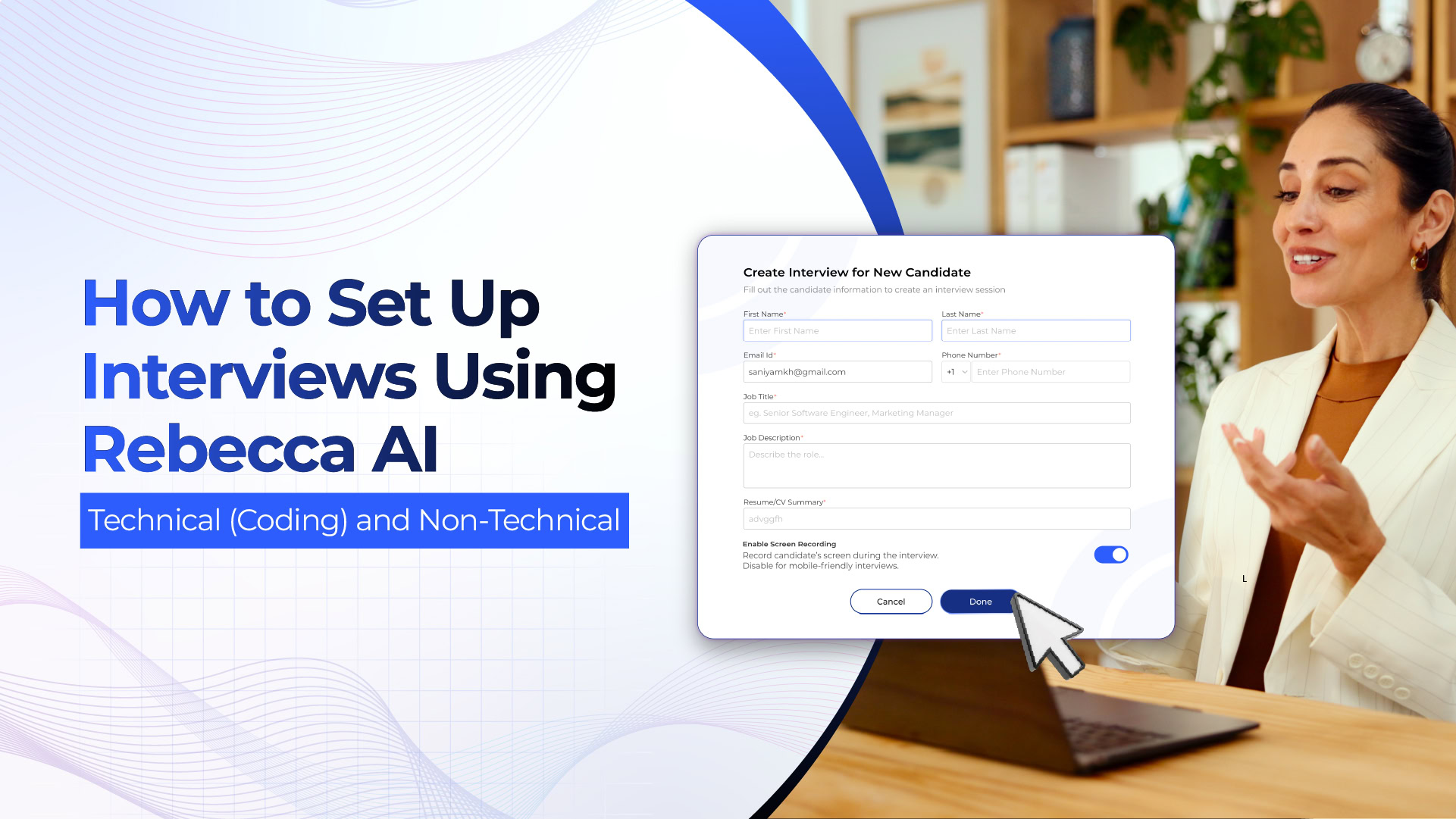
Recruiters and staffing agencies are under constant pressure to screen more candidates in less time without sacrificing the quality of interviews. This is the exact problem that the AI video interview tool from Pete & Gabi, Rebecca AI was built to fix. Rebecca AI conducts structured voice interviews with candidates, records their screen activity if necessary, and can even perform a live coding assessment in the same session.
Whether you are hiring for a technical position, such as a Full Stack Developer, or a non-technical position, such as a Data Analyst, Rebecca AI allows you to configure and launch a candidate interview in just a few steps. This guide walks through the exact process of setting up both technical (coding) interviews and non-technical interviews on the Rebecca AI dashboard.
Getting Started: Accessing the Rebecca AI Dashboard
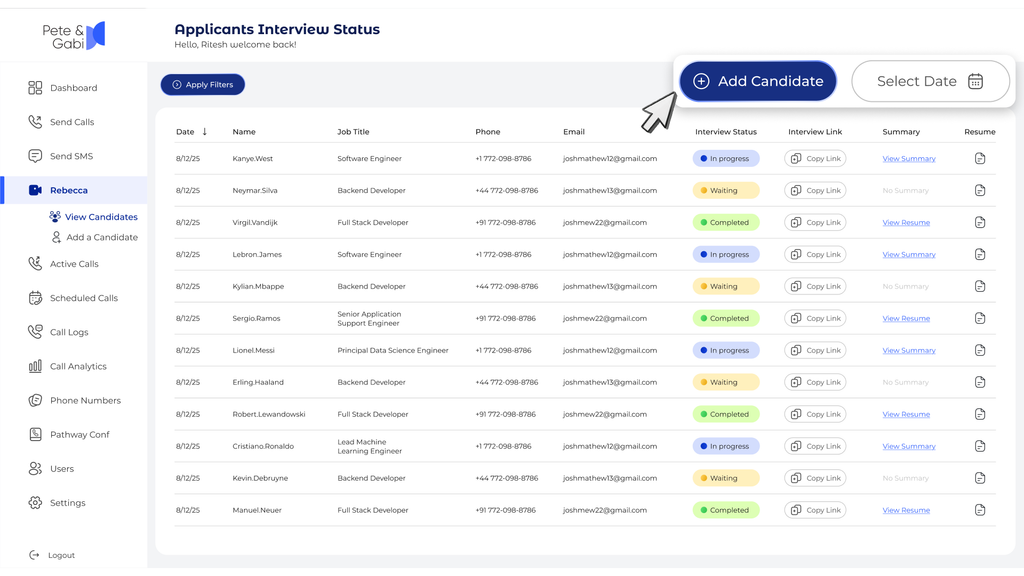
Before setting up any interview, log in to your Pete & Gabi account and navigate to the Rebecca AI tab in the left sidebar. Expanding this tab reveals two sections:
- Dashboard: a high-level view of interview activity
- Database: the Candidates Interview Database, where you create, track, and manage every candidate interview
Step-by-Step: Setting Up a Technical (Coding) Interview
Technical interviews need another dimension to the chat because recruiters want to evaluate a candidate’s real coding skills. To solve this Rebecca AI has built-in coding challenge capabilities. Here’s how to install it:
Step 1: Open the Candidate Creation Form
From the Candidates Interview Database screen, click Add Candidate. This opens the “Create Interview for New Candidate” form.
Step 2: Enter Candidate Details
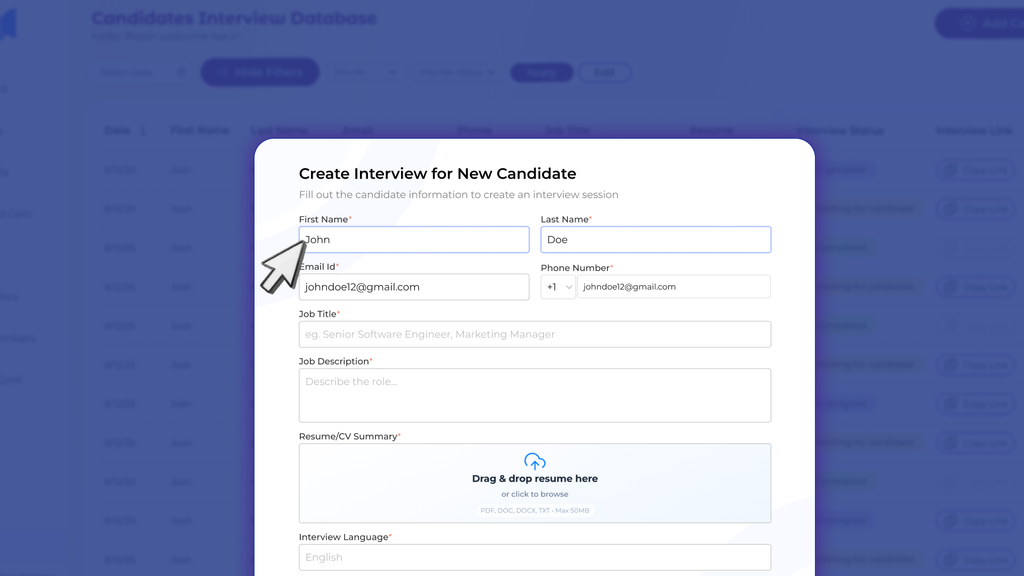
Fill in the required candidate information:
- First Name and Last Name
- Email ID
- Phone Number (with country code selector)
Step 3: Add Job Information
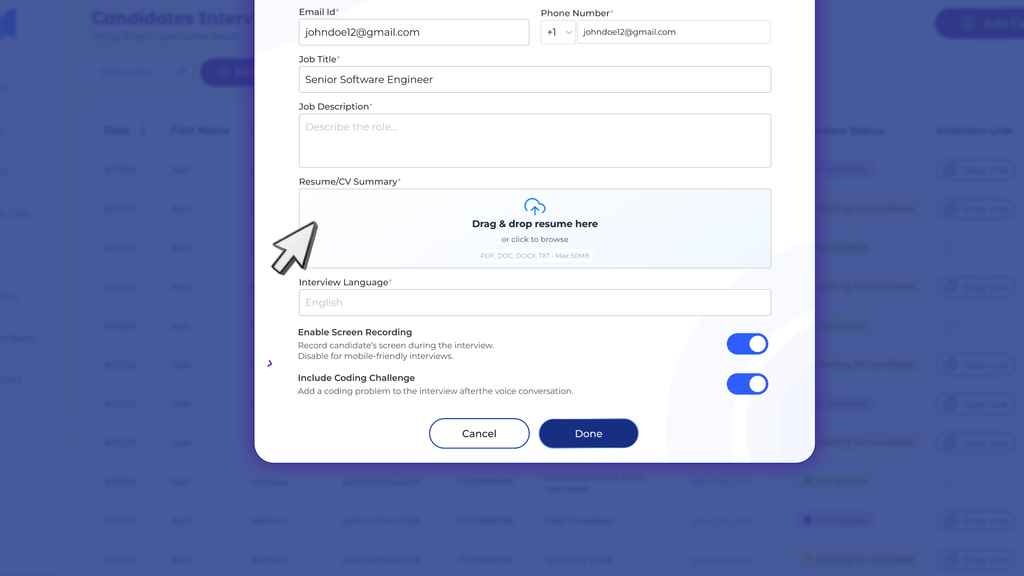
Enter the Job Title (for example, Full Stack Developer) and a detailed Job Description. This context helps Rebecca AI tailor its interview questions to the role.
Step 4: Add a Resume or CV Summary
Paste a short Resume/CV Summary so the AI interviewer can reference the candidate’s background and ask relevant follow-up questions during the conversation.
Step 5: Select the Interview Language
Choose the language for the interview from the Interview Language dropdown. English is shown as the default option.
Step 6: Keep Screen Recording Enabled
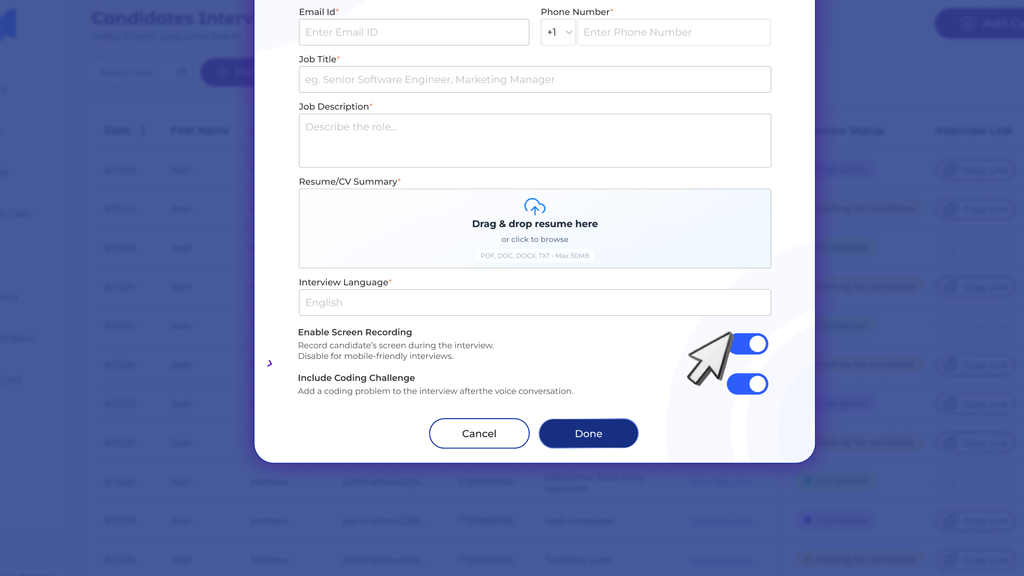
The Enable Screen Recording toggle is on by default and records the candidate’s screen during the interview. If you turn it off, Rebecca AI shows a warning that this option should only be disabled if you are creating a mobile interview.
Step 7: Turn On the Coding Challenge
Enable Include Coding Challenge. The toggle description confirms this adds a coding problem to the interview after the voice conversation. Switching it on displays two more fields:
- Select Coding Question: Pick question from the built-in question bank that includes Balanced Word Check, Longest Unique Substring, Find Missing Number, Balanced Parentheses, Move Zeros to End, Sort Strings by Length, Duplicate Character Counts, Remove Duplicate Letters, Sentence Alphabet Weight, Median of Two Sorted Arrays
- Preferred Language: Select the language the candidate will use to code (e.g. Python) The field notes that selecting “Any” turns off syntax enforcement
Step 8: Review and Confirm
Click Done to go to the review screen. Under Candidate Information, Job Details and Interview Settings, Rebecca AI provides a full summary of the selected coding question and programming language so you can double check the configuration before it goes live.
Step 9: Generate and Share the Interview Link
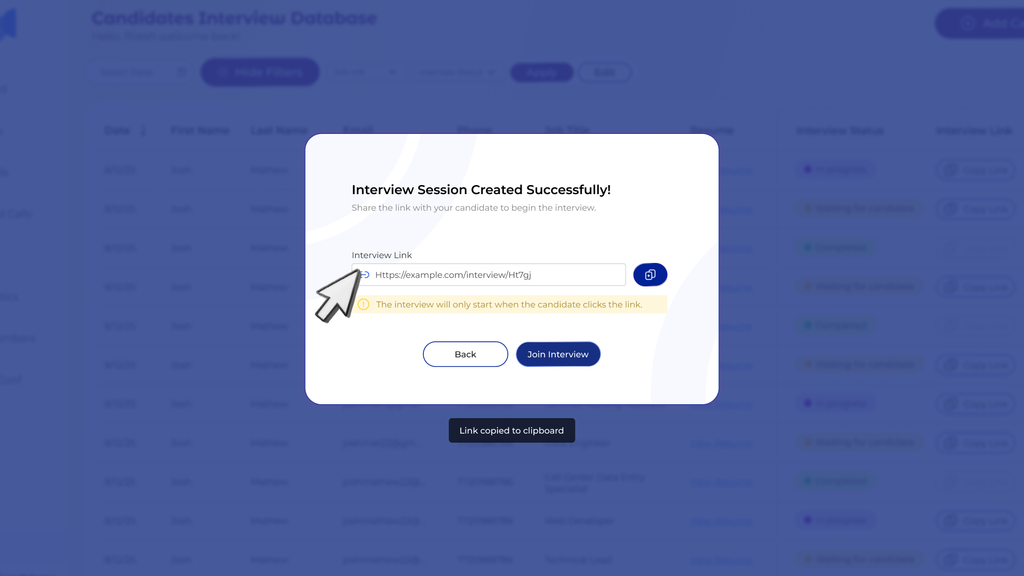
Click on Confirm & Generate Link. Rebecca AI generates a personalized interview link instantly and verifies that the session was successfully created. Copy this link with the copy button inbuilt, and email, SMS or through your applicant tracking system to the candidate. Once the candidate clicks the link, the interview begins, so you don’t have to worry about scheduling.
Step 10: Track Interview Status
The candidate’s row in the Candidates Interview Database will now have a status of “Waiting for candidate” or “In Progress”. Once completed, the status updates and an AI-generated interview summary are available directly in the table.
Step-by-Step: Setting Up a Non-Technical Interview
For non-technical roles like data analyst, sales, operations or customer support, the core workflow remains the same, but they skip the coding assessment. This ensures the process is fast and solely focused on conversational screening.
Step 1: Click Add Candidate
From the Candidates Interview Database, click Add Candidate to open the interview creation form.
Step 2: Fill in Candidate and Role Details
Enter the candidate’s First Name, Last Name, Email ID, and Phone Number, followed by the Job Title and Job Description for the non-technical position you are hiring for.
Step 3: Add the Resume Summary
Add a brief Resume/CV Summary highlighting relevant experience, so Rebecca AI can personalize its interview questions accordingly.
Step 4: Set the Interview Language
Select the Interview Language from the dropdown. English is shown as the default option.
Step 5: Configure Screen Recording
Screen Recording is enabled by default. If you turn it off, Rebecca AI shows a warning that this option should only be disabled if you are creating a mobile interview.
Step 6: Leave Coding Challenge Off
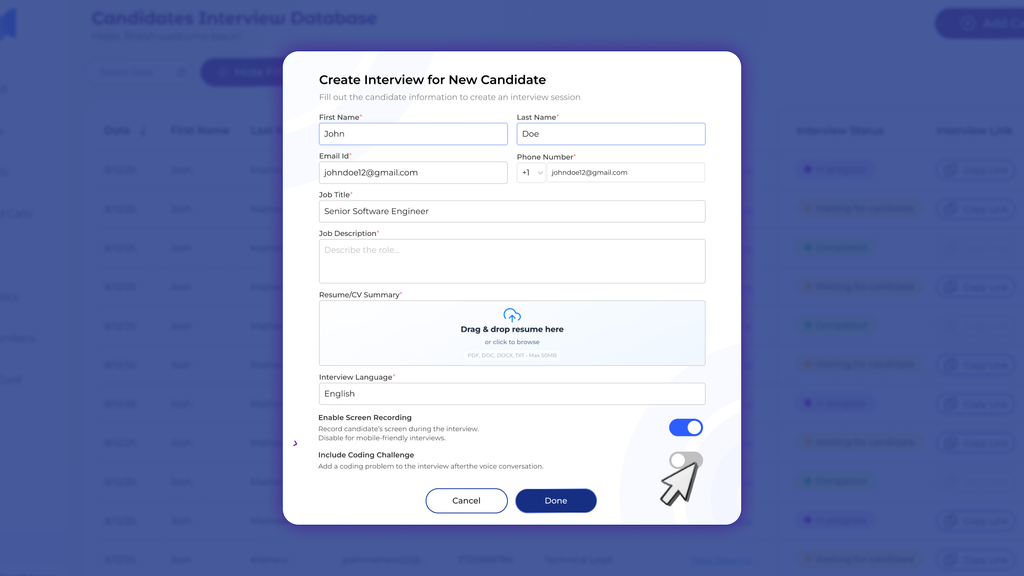
Since this is a non-technical interview, leave the Include Coding Challenge toggle switched off. No coding question or programming language field appears when the toggle is off, which keeps the setup simple.
Step 7: Review Interview Details
Click Done to open the “Review Interview Details” screen. Confirm the candidate information, the job details and the interview settings (for a non-technical interview, only the language and screen recording status are displayed).
Step 8: Generate the Interview Link
Click Confirm & Generate Link. A unique candidate interview link is generated immediately, ready to be copied and shared.
Step 9: Share and Monitor
Send a link to the candidate and track their status directly from the Candidates Interview Database. Like technical interviews, the session is activated when the candidate clicks the link and once the interview is over, a status update along with an AI generated summary is displayed.
Why Recruiters and Staffing Agencies Are Adopting Rebecca AI
Getting an interview with Rebecca AI is easy. Just fill in the details for the candidate and the job and then click on generate interview link to share. For example, a recruiter or staffing agency can use the same dashboard to conduct a voice-based screening interview for non-technical roles, and add a coding assessment for technical roles, helping them standardize their screening process across different openings without having to switch tools.
Get Started with Rebecca AI
Ready to bring AI video interviews into your recruiting workflow? Sign up for Rebecca AI to create your account, add your first candidate, and generate an interview link for both technical and non-technical roles today.